Tips: For the user manual and additional software (including CMS), please visit https://eseecloud.app/download/ to download.
Fast network
Step: Right-click the mouse in the main menu → Fast network → Choose Auto Config → Click OK. If you want to manually configure the IP address, click diagnose. If it shows a healthy network, it indicates the connection to the Internet is good. If there is a network anomaly, plz process according to the clew. (Ensure your device has accessed the network)

IPC Set UP
- Step: Right-click the mouse in the main menu → Click Video Manage → Click Refresh to search IPC → Two ways to add IPC:
- Click the IPC searched, then click add, IPC will add to the target channel
- Click Auto-add (Auto-add can add all the IPC searched to the channel list)
- Delete channel: Delete channel information
- Edit channel: Manually revise channel parameters (such as password of user name) Click OK to finish operation.

Preview of VR Camera
Double-click the image on the main interface—choose a different preview mode.


- Step 1: default preview mode
- Step 2: corridor mode
- Step 3: plane full view positioning in 3 split screen mode
Video detection
Step 1: Right click mouse in main menu→System setup→Record setup→Record plan→choose motion→choose all→click Copy to→click OK to save setting
ステップ2: Right click mouse in main menu→System setup→Channel setup→choose Video detection→choose motion→click Enable→Click OK

ビデオ再生
Step: Right click on main interface→video playback→choose “channel”→choose “record mode”→setup “search time”→click “search”, click timeline to choose time→click “playback” to check recording file.


ビデオ・バックアップ
Steps: Right-click the mouse in the main menu→Video backup→choose channel No.→choose Record mode→In search time, input beginning time and end time→click search, and recording will come out→choose the video which needs to be backup→click video backup.
ヒント Support 32G U disk backup maximum, recording file will be packed every one hour.

Access in LAN
Step 1: Quick Networking—check the IP address of the device.

ステップ2: The correct web port needs to be put in the web port is changed, such as the web port changed to 1111, then input http://192.168.1.247:1111

Step3: Once access successful, you can get the video

ヒント Please make sure the video recorder and computer are in the same network segment.
Access in WAN

Step1: Right-click the mouse in the main menu—Quick Networking—check the ID of the device.
ステップ2:
Input http://www.dvr163.com on IE browser, input ID, user name, and password, and click log in.
Step 3:
Once you access it successfully, you can get the video.
ヒント
Video quality and fluency depend on the upload speed of the video recorder and the download speed of the computer; each channel needs above 30KB.

Mobile application download and installation
No. 1: Go to http://www.dvr163.com/download/indexm.php?p=ippro in a mobile browser, enter the download page, click install to download, and install the APP.
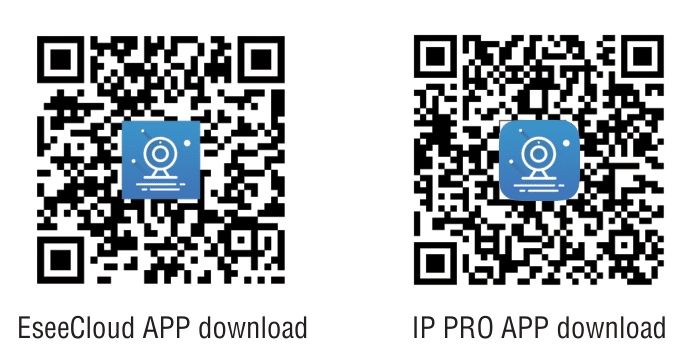
No.2: Please scan the QR code in the manual to download the APP.

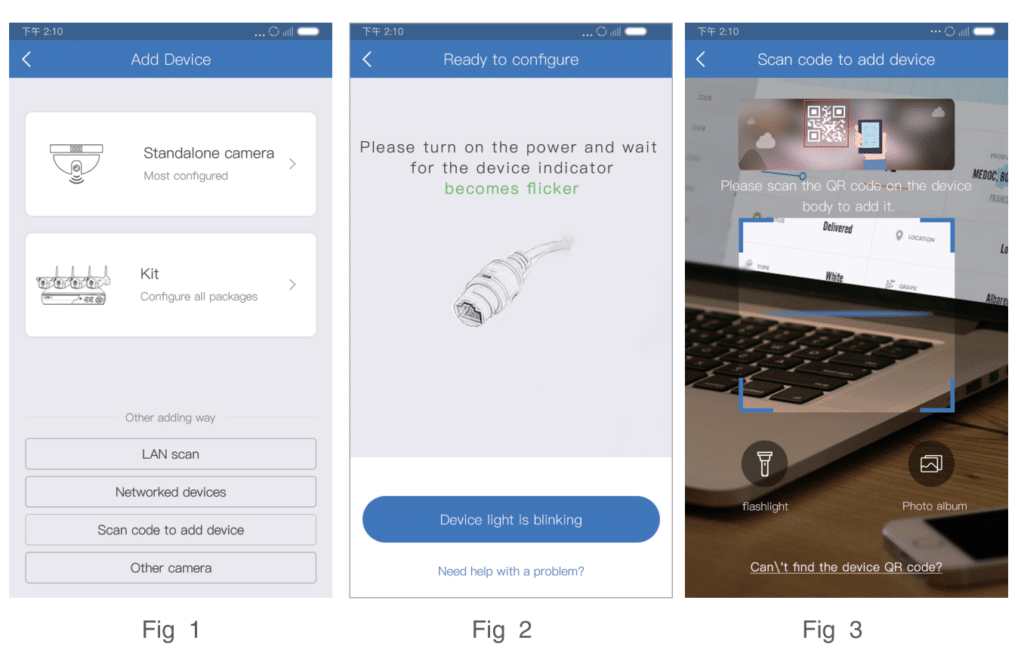
Esee mobile application (IP Pro)-Add device
- Step 1: Register and login
- Step 2: Enter the main interface
- Step 3: Add the device back to the main interface
- Step 4: Added successfully. Click channel No. to get video
- Step 5: Remote playback